> ## Documentation Index
> Fetch the complete documentation index at: https://docs.getghostme.com/llms.txt
> Use this file to discover all available pages before exploring further.
# Setup iPhone for GhostMe
To setup your iPhone to change your location on macOS or Windows, follow these steps:
1. Plug your iPhone into your computer with a charging cable and unlock your device.
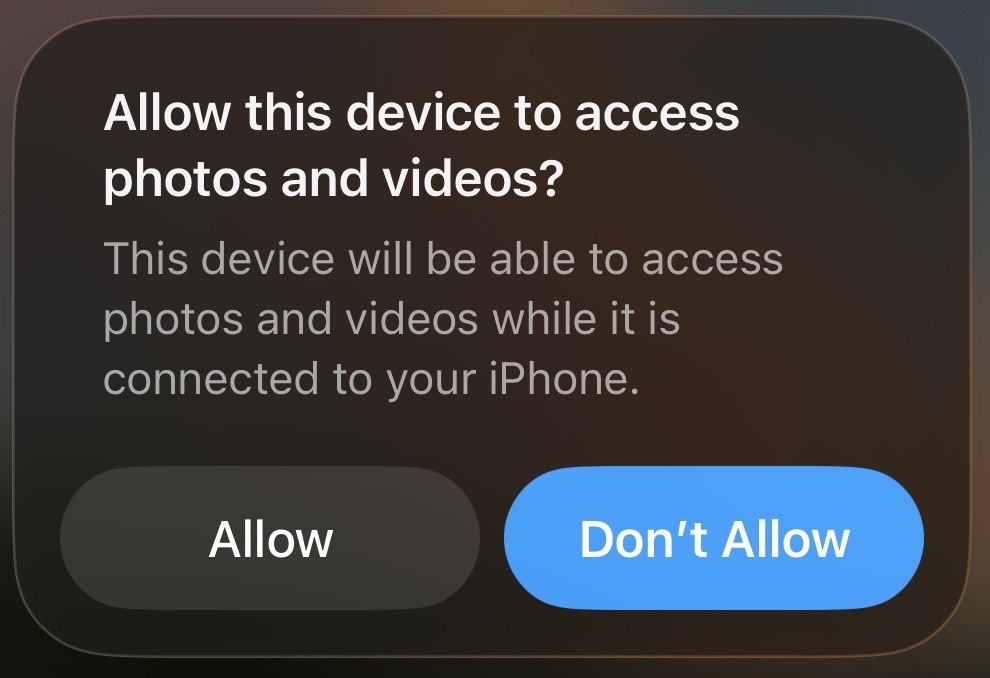
If you haven't plugged your iPhone into your computer before or often, you may see a popup asking for access to your **photos & videos**. If you see this, click **Don't Allow** as this is asked **by your computer, not GhostMe**, and is not needed for GhostMe.
 2. Open GhostMe to the main screen with the map.
3. When you see the popup that says "Trust This Computer", click **Trust** and enter your passcode.
2. Open GhostMe to the main screen with the map.
3. When you see the popup that says "Trust This Computer", click **Trust** and enter your passcode.
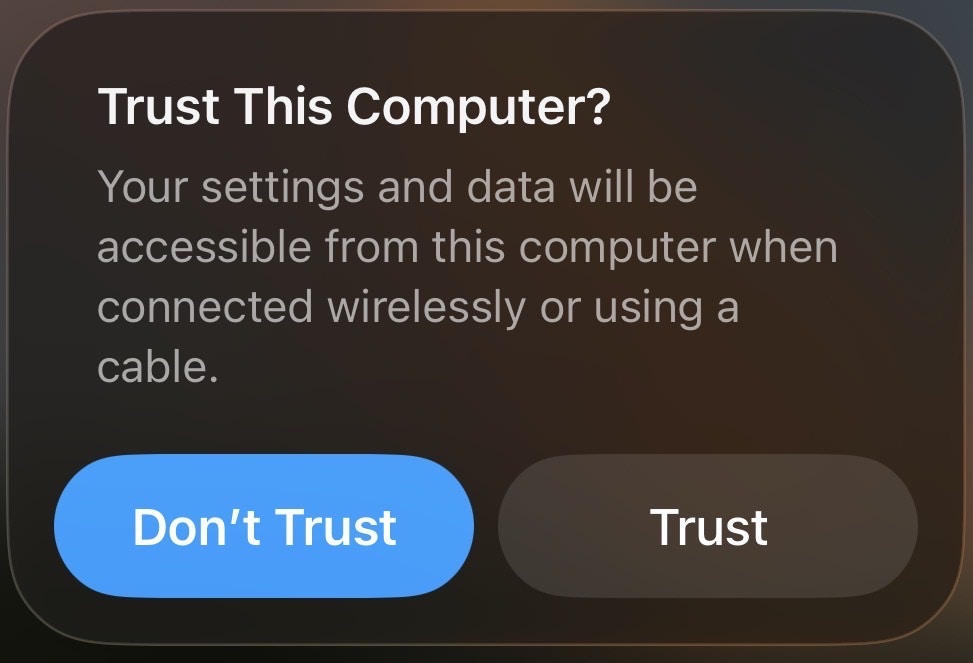 **Troubleshooting:** If you don't see this popup or accidentally clicked "Don't Trust", unplug your iPhone and plug it back in. If you still don't see it:
* **Mac:** Try a different cable or USB port
* **Windows:** Make sure you installed the **Apple Devices** app from the Microsoft Store and rebooted your computer
If you still don't see it, [contact support](/introduction/contact-us).
4. Open **Settings** > **Privacy & Security** and scroll to the bottom. Open **Developer Mode** and enable it.
**Troubleshooting:** If you don't see this popup or accidentally clicked "Don't Trust", unplug your iPhone and plug it back in. If you still don't see it:
* **Mac:** Try a different cable or USB port
* **Windows:** Make sure you installed the **Apple Devices** app from the Microsoft Store and rebooted your computer
If you still don't see it, [contact support](/introduction/contact-us).
4. Open **Settings** > **Privacy & Security** and scroll to the bottom. Open **Developer Mode** and enable it.
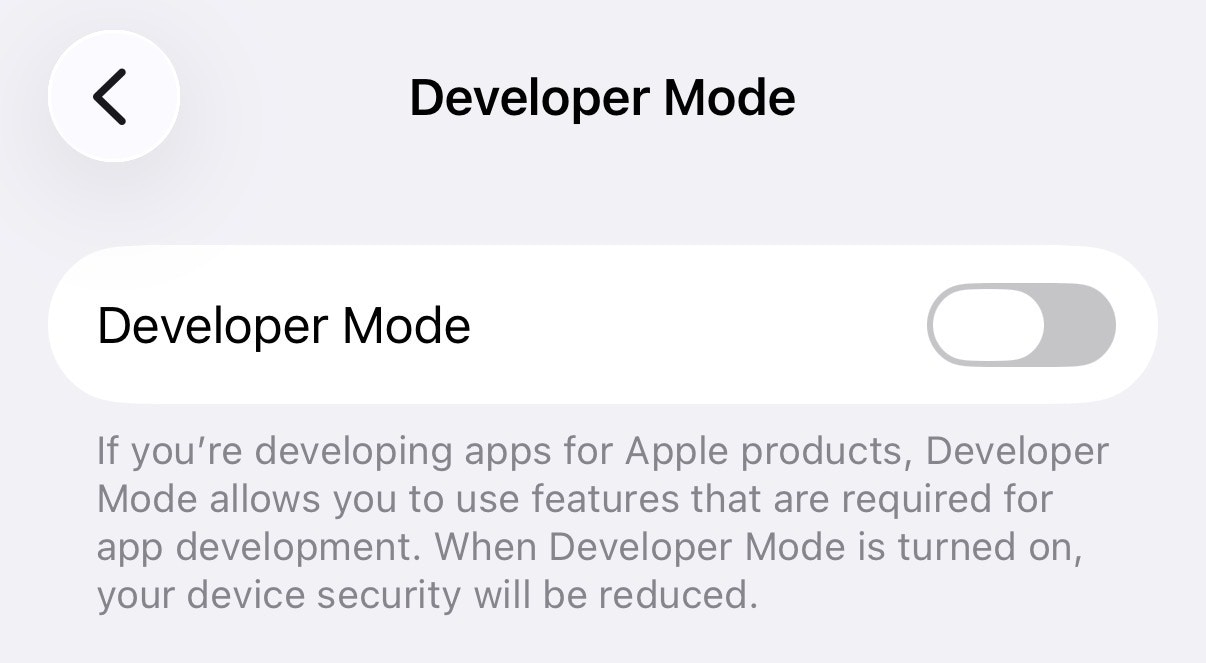 5. Follow the on-screen prompt to reboot your phone. Tap **Restart** when iOS asks you to confirm. When your phone turns back on, enter your passcode to enter Developer Mode.
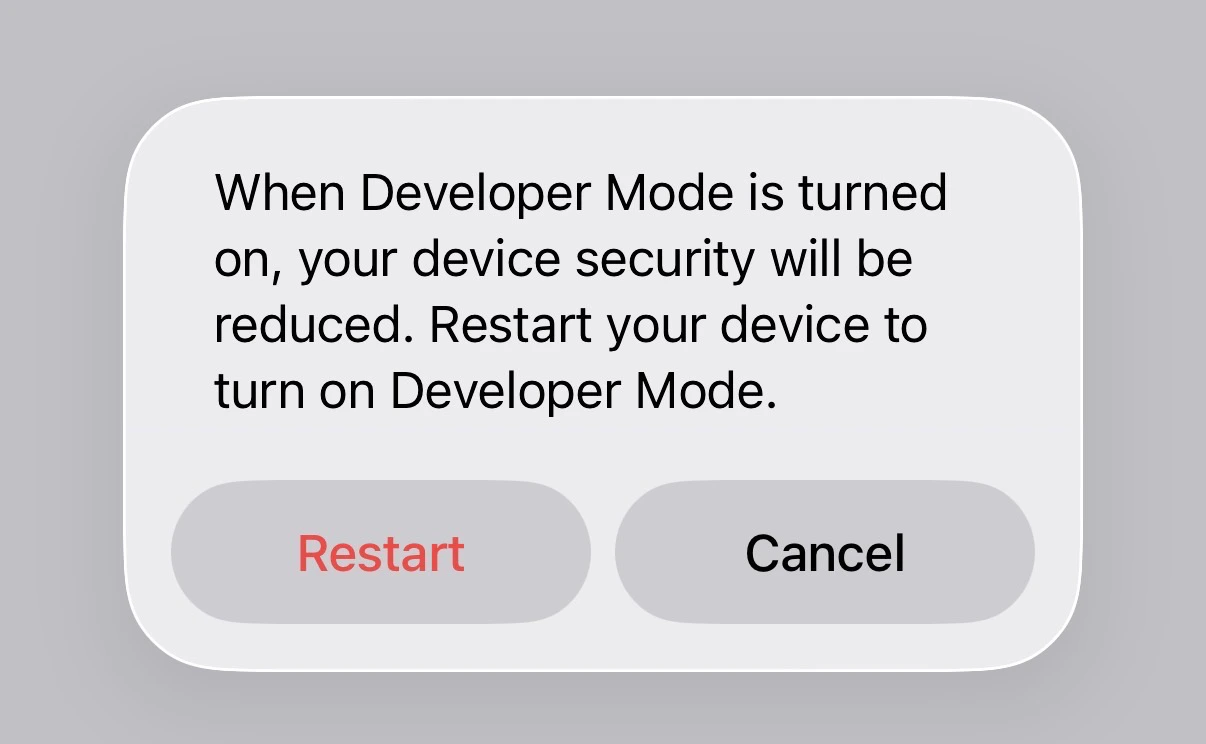 After your phone boots back up, open **Settings** > **Privacy & Security** > **Developer Mode** and confirm the switch is **On**. If it is off, turn it on again and complete any prompts iOS shows.
You should see the status indicator turn **Green** next to the name of your device on GhostMe. Your device is now ready to change location.
After your phone boots back up, open **Settings** > **Privacy & Security** > **Developer Mode** and confirm the switch is **On**. If it is off, turn it on again and complete any prompts iOS shows.
You should see the status indicator turn **Green** next to the name of your device on GhostMe. Your device is now ready to change location.