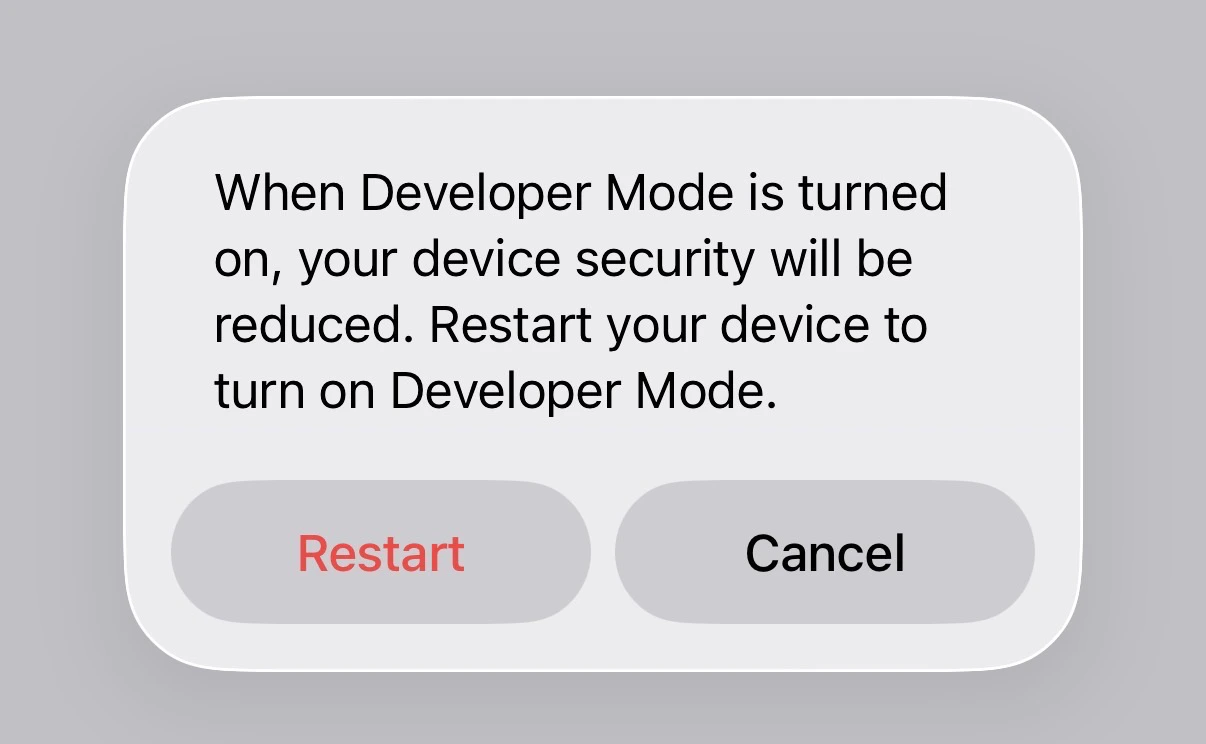
- Plug your iPhone into your computer with a charging cable and unlock your device.
If you haven’t plugged your iPhone into your computer before or often, you may see a popup asking for access to your photos & videos. If you see this, click Don’t Allow as this is asked by your computer, not GhostMe, and is not needed for GhostMe.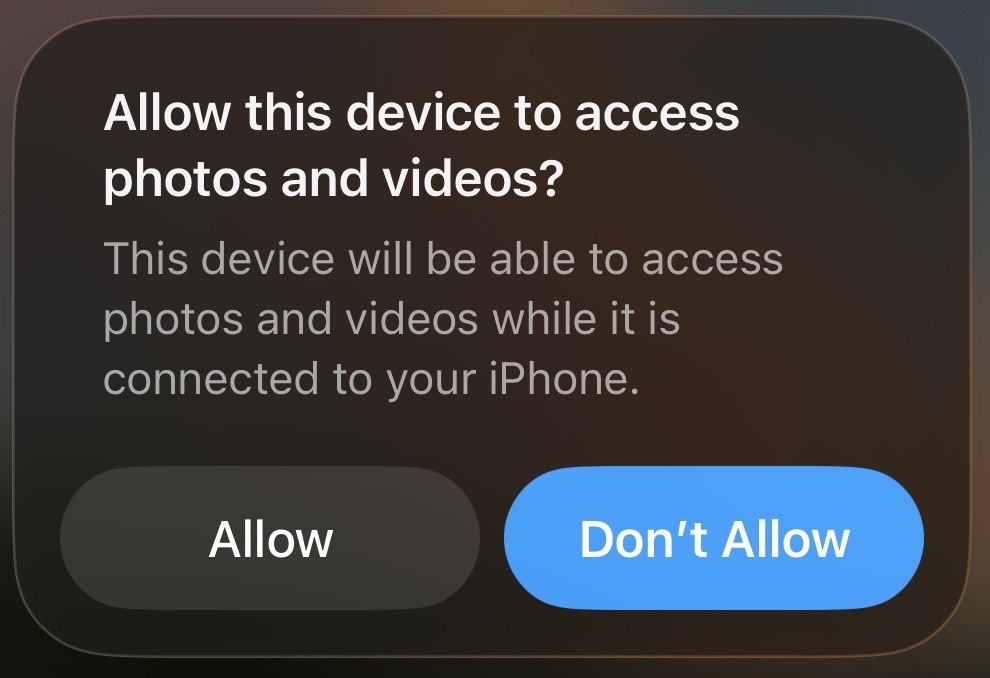
- Open GhostMe to the main screen with the map.
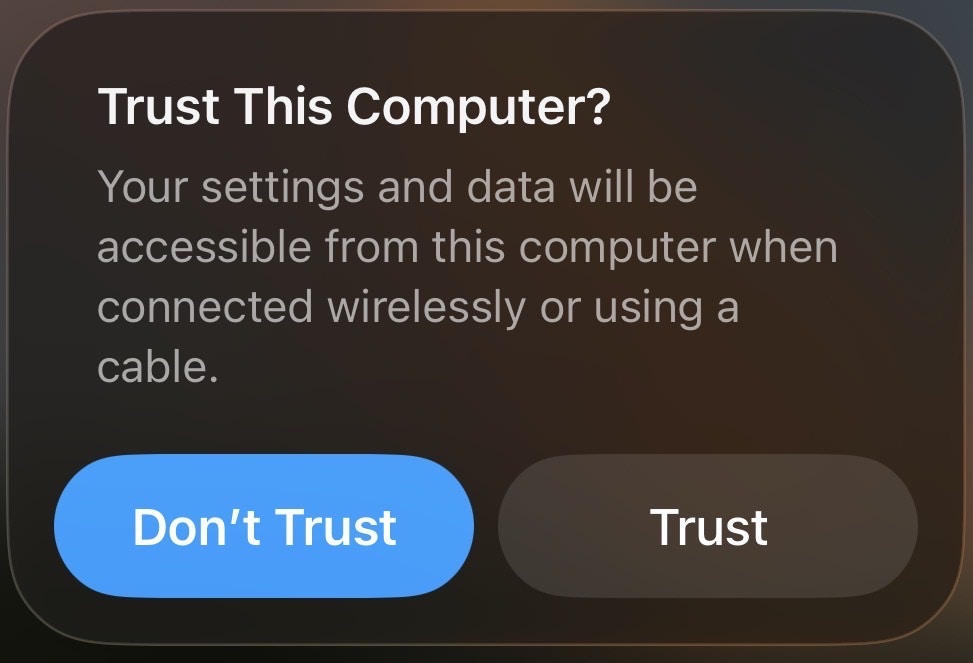
- When you see the popup that says “Trust This Computer”, click Trust and enter your passcode.
- Mac: Try a different cable or USB port
- Windows: Make sure you installed the Apple Devices app from the Microsoft Store and rebooted your computer
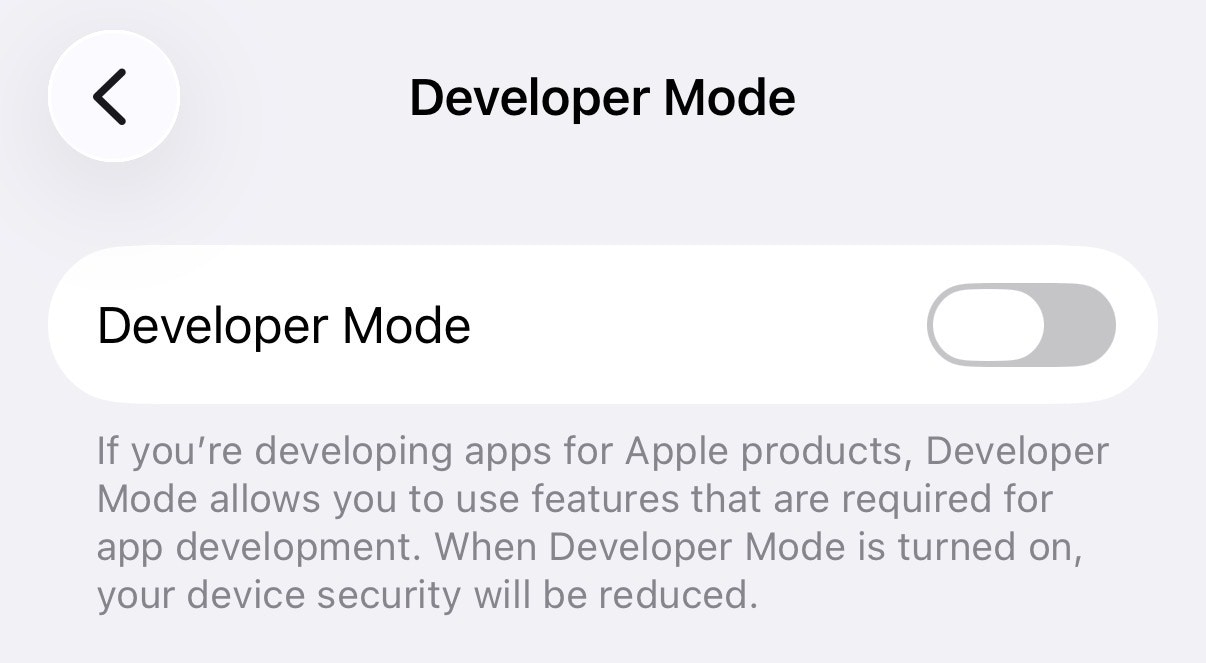
- Open Settings > Privacy & Security and scroll to the bottom. Open Developer Mode and enable it.
- Follow the on-screen prompt to reboot your phone. Tap Restart when iOS asks you to confirm. When your phone turns back on, enter your passcode to enter Developer Mode.